

iorad tutorials can be embedded directly inside Canvas LMS courses, adding interactive step-by-step walkthroughs to any module, page, or assignment. Canvas supports iFrame embedding, which means iorad's interactive format works natively inside the platform without requiring plugins or workarounds.
Learners click through the tutorial steps without leaving the Canvas course, keeping the training experience inside the LMS rather than sending students to external links. For higher education institutions and corporate training teams using Canvas as their primary LMS, iorad provides the interactive layer that text-based course content cannot replicate. This article covers how to embed iorad tutorials in Canvas and how to structure them within a course.
Best practices for iorad in Canvas courses
Place iorad tutorials at the point in a Canvas module where learners are expected to practice the skill being taught, not at the end of the module as an optional resource. Embedding at the practice point increases completion rates because the tutorial is immediately relevant to the lesson the learner just read. For multi-week courses, consider placing a short iorad tutorial in each weekly module covering the software task most relevant to that week's content. This ensures learners get hands-on practice at a consistent cadence throughout the course without requiring a separate lab environment.
There are interactive resources to learn all sorts of things these days. From interactive math, science, reading, typing, coding, spelling… you name it! However, as far as learning applications or processes go… not so much. That’s where iorad comes in. There are 3 scenarios where iorad is used in Canvas: Teacher — Student, Teacher — Teacher, and Teacher — Parent.
Teachers and Instructional Techs use the iorad integration to populate Pages with How-To tutorials to share with fellow teachers as a place to reference. Teachers also use this integration for creating help sections for their students. No matter what class, the opportunities are almost endless how teachers can utilize iorad in the classroom.
Use iorad as a tool to flip the classroom in & outside the classroom walls. You can insert an iorad within an assignment, similar to having split screens for the student. For example, an English teacher at Alpine High School uses it as they assign an MLA format assignment. They embed a Google Doc next to an iorad that teaches the steps of how to properly format an MLA paper in Google Docs. The student can mimic the instructions in the tutorial right there in the Google Doc assignment and then submit it on the spot.
Other teachers have used iorad to help them flip their classroom, ensuring that the students are guided properly through the lesson as they would be in class. They use all the same content they present in class and use iorad to walk the students through the Hyperslides and Hyperdocs in the proper order.
Diane the Program Administrator at Portland Public Schools uses iorad to submit hundreds of quick walk-through tutorials for students in online learning! She uses Google Translate and our Voiceovers to generate text-to-speech instructions.
What about the ever so fun process of registration at the beginning of the year? This is where you ask parents to learn their way around various systems to give you all this information about their child. You can use iorad to walk them through how to get set up in the various applications they or their student will use in class, almost like you are holding their hand.
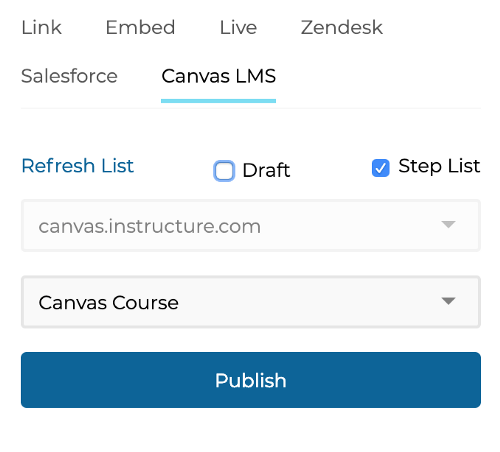
Whether you are creating content for students, teachers, or parents, using iorad and publishing to Canvas is super simple. After connecting Canvas and iorad, just click the “Canvas LMS” tab in iorad finish screen, select your course and click Publish. Check out the iorad below to see just how simple it really is!