

The iorad browser extension sits in your Chrome toolbar and activates the moment you start recording a software workflow. Click the extension icon, walk through the process you want to teach, and stop the recording. iorad converts every click and keystroke into a step-by-step interactive tutorial automatically, no editing required.
Unlike standalone screen recording tools that produce a video file you then have to edit, caption, and upload, the iorad extension produces a structured tutorial ready to publish in minutes. This article covers how the extension works, what it captures, how to install it, and the workflows where it delivers the biggest time savings.
The iorad extension is the new shortcut for web browser training! We know what you’re probably thinking… this seems too good to be true. It’s not, we promise. Let’s talk about what this looks like for the learner. The learner simply installs the iorad extension on their browser. Sometimes the IT department can push the extension out to everyone. The iorad extension will serve up tutorials according to the domain they are visiting.
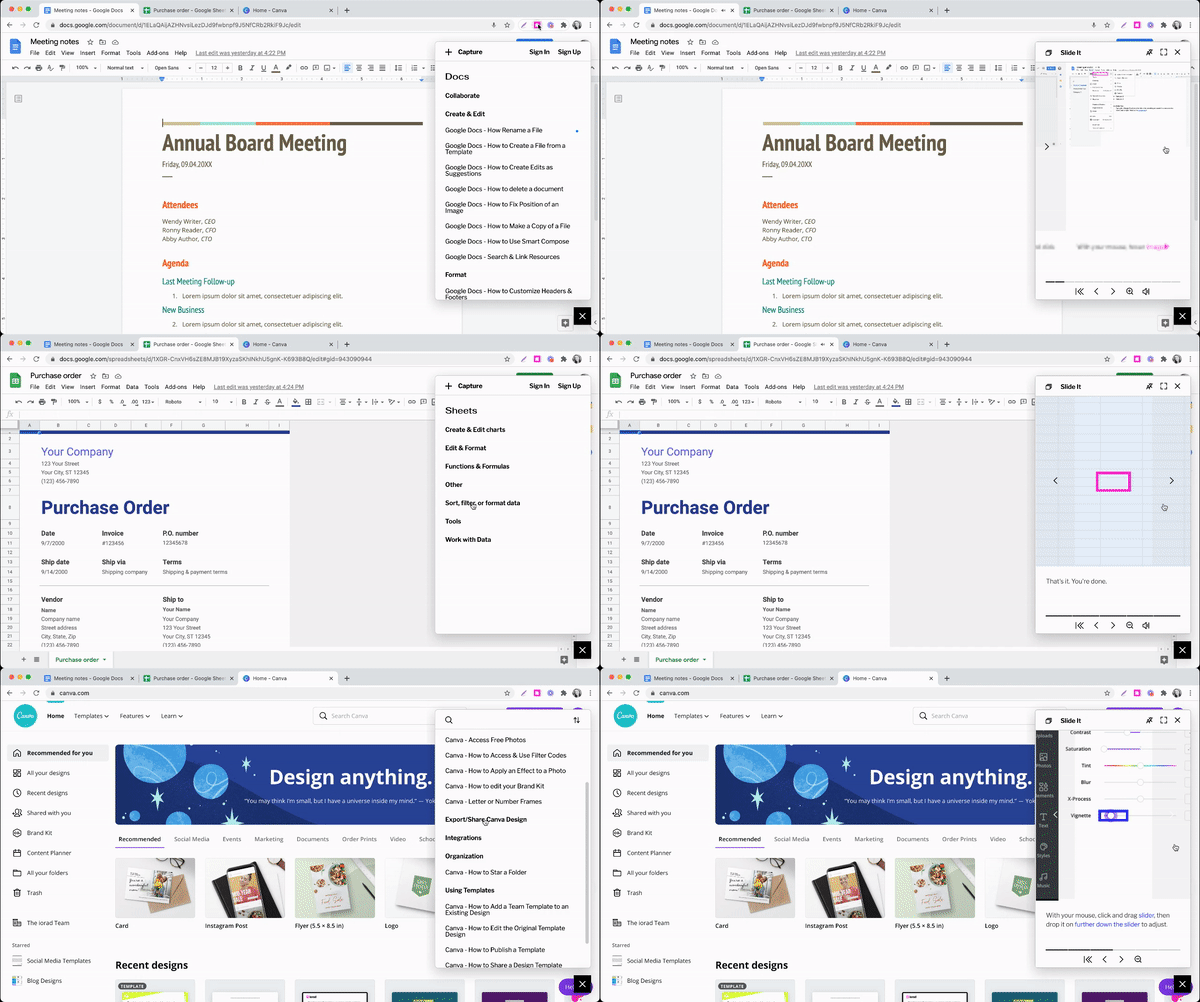
For instance, when the user navigates to Canva and clicks on the iorad extension they will see all the Canva tutorials that have been created and shared with them. Not only that but the tutorials will be fully searchable as well. You could even take it up a notch more and provide a live in app option, we call “Go Live.”
Sharing
The next piece of this is understanding how to share the tutorials with your users. This will vary from organization to organization based on a few factors, such as who you are sharing the tutorials with and where else the tutorials are being shared. This approach to sharing tutorials via the extension is generally used within organizations to train internally. Whereas, the iorad widget is more often used for customer training or those who are external to the organization.
Factors to consider:
- Who are your Learners?
— Internal to the Organization(Employees): Do they all have the same email domain? Is the organizations email through Google or Microsoft Azure? Google Single Sign On(SSO) is included in all plans, whereas Microsoft Azure SSO requires a Custom Quote.
— External to the Organization:Do you have a small enough list or an easy way to manage a list of people you wish to share tutorials with?
- Where will these tutorials be shared?
— Consider all the various places you may be sharing tutorials: LMS, KnowledgeBase, Help Center, Email, Embed in Website, etc.
- What type of Privacy settings are needed?
— For any of the privacy options, you will need to define who has permission to view the tutorials through the extension. The best scenario is sharing tutorials internally within the organization, where all users have the same email domain, and the email is managed by Google or Microsoft Azure. Iorad has a direct Single Sign On(SSO) integration with Google so it’s super simple for the learner to sign in to gain permission to view tutorials. All the creator needs to do in this scenario is to check “view access for anyone email@domain.com” in the share menu.
— If you’re sharing with learners who don’t have the same email domain or their email isn’t through Google/Azure, it would require uploading a .csv file with a list of users. There is a manual option to enter emails one by one, as well.
Getting started with the iorad extension
Installing the iorad extension takes under two minutes from the Chrome Web Store. Once installed, it appears in your browser toolbar. Log in to your iorad account, navigate to the software you want to document, click the extension icon to start recording, and complete the workflow.
When you stop, the tutorial is built. Review the steps, add any additional context, and publish or share directly from the iorad dashboard.
In a summary, consider deploying the iorad extension to your internal teams making iorad their trusty assistant for all the web applications they use day to day.